orob
All 11 set-up steps

Getting started

How to set up your orob account

Xaurum Fintech Private Limited

To set up orob, install the free app from Google Play or the App Store, confirm your mobile number with a code on WhatsApp, then choose your cities, your metals and the dealers you want to follow. It takes a few minutes. orob is a free phone app that compares gold and silver prices from all bullion dealers across India on one screen.

The screens below are taken from the orob app as it looked in November 2026, with made-up dealer names, round prices and a placeholder phone number. The app may look slightly different on your phone.

Get the orob app

Free for Android and iPhone. Nothing is bought or paid inside orob, and the prices shown are indicative.

Download on the App Store Get it on Google Play

Watch the whole set-up

The same screens as a video of under two minutes. It starts muted and the words are on screen, so it works without sound; use the speaker button to turn the voice on. The steps below say the same in words.

हिन्दी में देखें

पूरा set-up Hindi में देखें

वही screens, एक छोटे video में, Viraj की Hindi आवाज़ के साथ। यह muted शुरू होता है और words screen पर दिखते हैं, इसलिए बिना sound के भी चलता है; आवाज़ के लिए player का speaker button दबाइए। नीचे के steps अंग्रेज़ी में हैं।

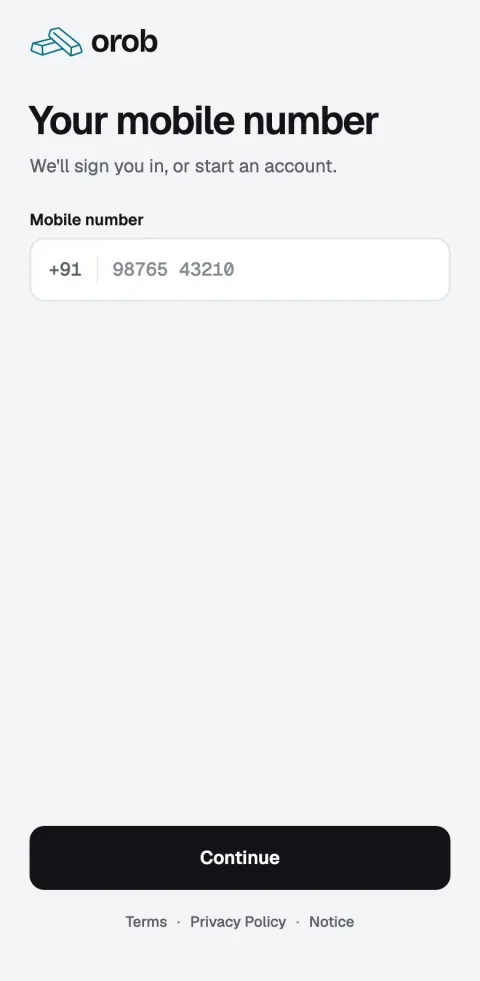
The first orob screen, headed Your mobile number, with a Mobile number field that starts with +91 and a Continue button.

STEP 1 OF 11

Open the app and enter your mobile number

Install orob from Google Play or the App Store and open it. The first screen asks for your mobile number: type the number that is connected to WhatsApp, because that is where your code arrives. Then tap Continue: orob signs you in if you already have an account, and starts one if you do not.

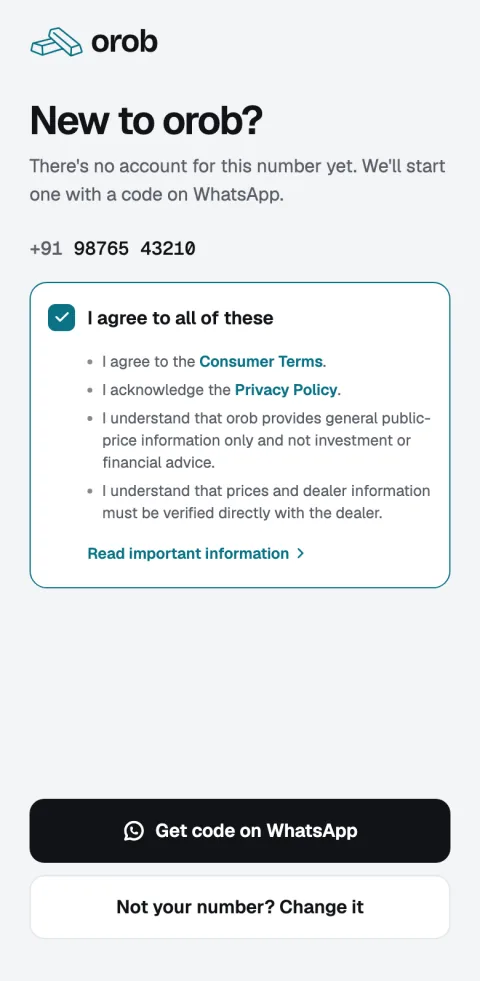
The orob New to orob? screen showing the mobile number, one tick box that agrees to the Consumer Terms and the Privacy Policy and acknowledges that orob gives general price information only and that prices must be verified with the dealer, and a Get code on WhatsApp button.

STEP 2 OF 11

Agree and get your code on WhatsApp

Use a mobile number that has WhatsApp: your login code (OTP) is sent only on WhatsApp, not by SMS. Your mobile number is your account: there is no username or email to remember. For a new number, orob shows it back to you. Tick the one box that agrees to the Consumer Terms, the Privacy Policy, that orob gives general price information only and not investment or financial advice, and that prices must be verified with the dealer, then tap Get code on WhatsApp.

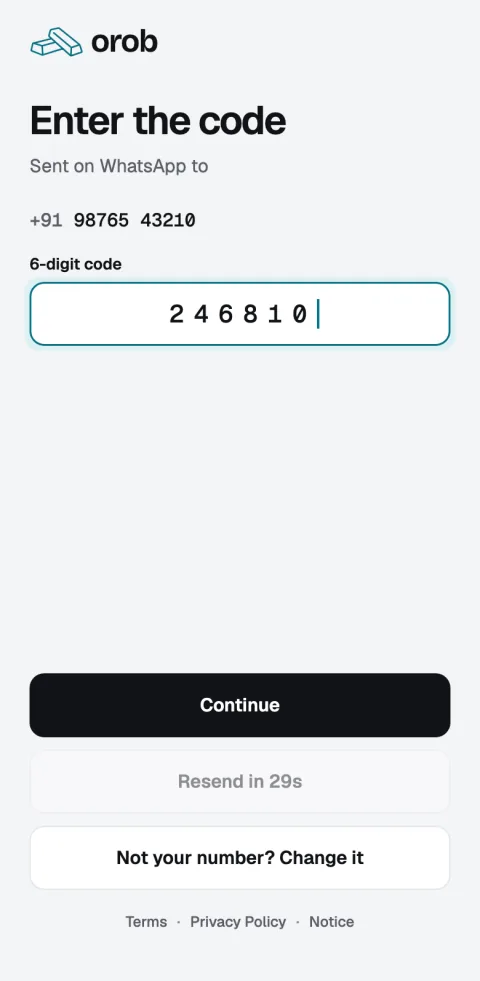
The orob Enter the code screen, which says the code was sent on WhatsApp, with a 6-digit code typed in, a Continue button and a Resend countdown.

STEP 3 OF 11

Enter the 6-digit code from WhatsApp

orob sends the code on WhatsApp, not by SMS, so the number you enter must have WhatsApp. Type the code in and tap Continue. If it does not arrive, wait for the Resend countdown to finish and ask for a new code.

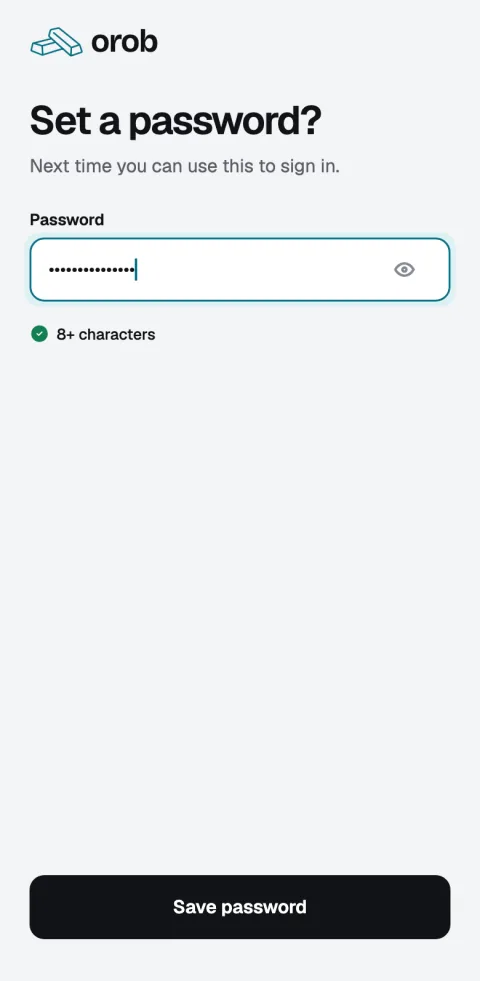
The orob Set a password screen with one password field, a green tick beside 8+ characters and a Save password button.

STEP 4 OF 11

Set a password

Choose a password of at least 8 characters and tap Save password. You are already signed in; the password is what you use to sign in next time.

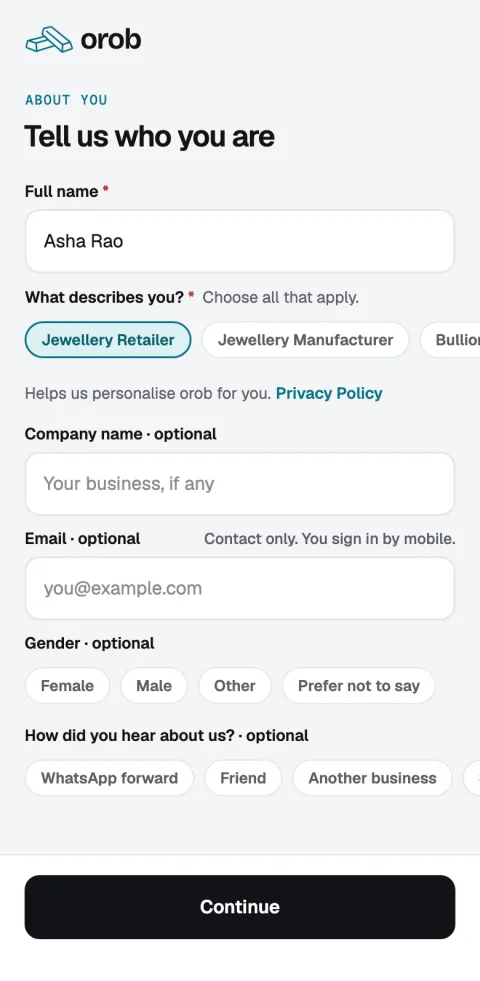
The orob Tell us who you are screen with a Full name field, a What describes you? choice with one answer ticked, optional Company name, Email and Gender fields, and a Continue button.

STEP 5 OF 11

Tell us who you are

Your name and what describes you are required. Your company, email, gender and how you heard about orob are optional, and your email is for contact only: you sign in with your mobile number.

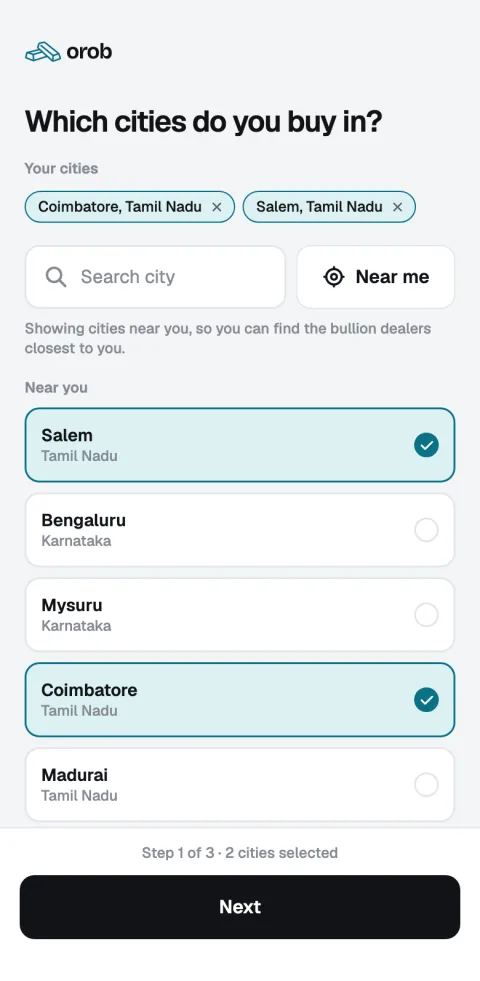
The orob Which cities do you buy in screen with two chosen city chips, a Search city box, a Near me button and a Near you list in which Salem and Coimbatore are ticked.

STEP 6 OF 11

Choose your cities

Pick the cities you buy in. Tap Near me to see the cities closest to you where dealers are quoting, or search for a city by name.

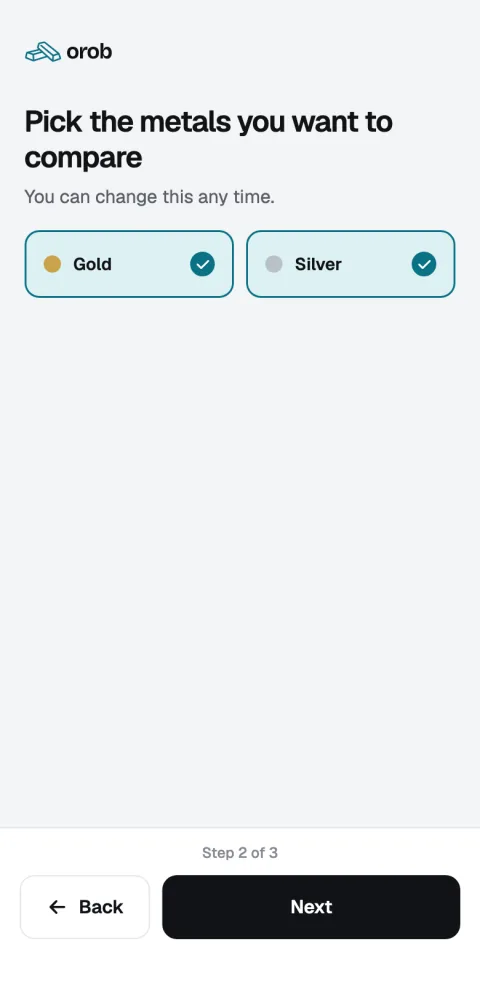
The orob Pick the metals you want to compare screen with Gold and Silver both ticked and a Next button.

STEP 7 OF 11

Pick your metals

Choose gold, silver or both. You can change this at any time.

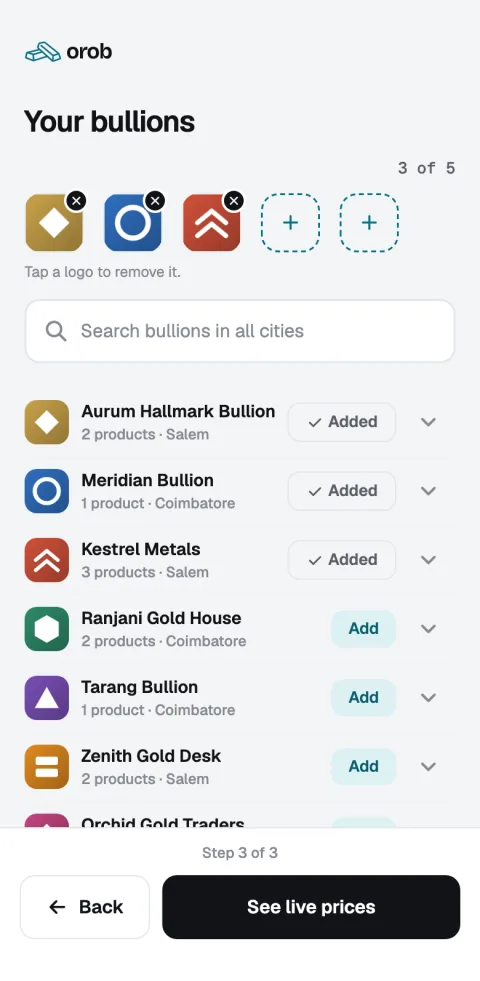
The orob Your bullions screen with three of five dealers added, a search box and a list of dealers with their logos, showing how many products each has and its city, above a See live prices button. The dealer names and prices are made up.

STEP 8 OF 11

Choose your dealers

Tap Add beside up to five dealers. Each one shows how many products it has and its city. When you are done, tap See live prices.

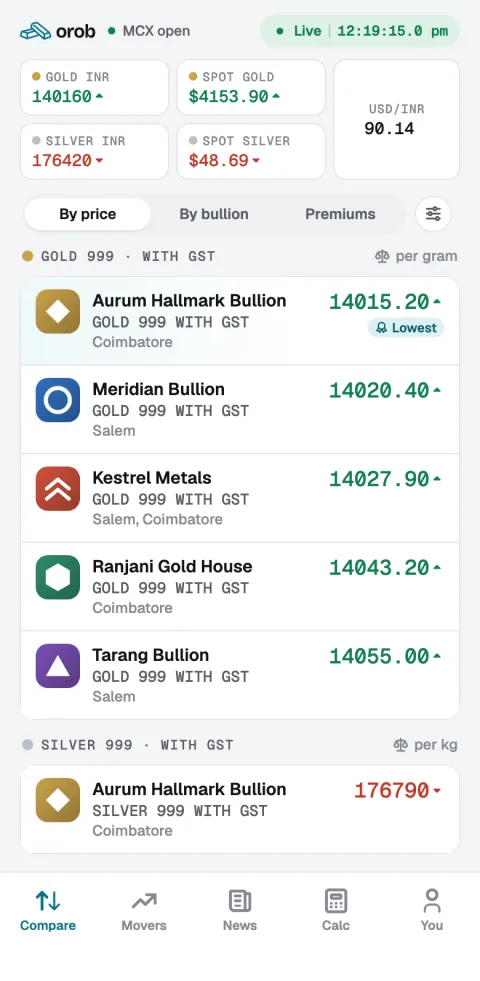
The orob Compare screen: the market rates Gold INR, Silver INR, Spot Gold, Spot Silver and USD/INR across the top, then five dealers' gold 999 prices with GST listed from the lowest, then a silver price. Prices that have just risen show in green with an up arrow and prices that have just fallen show in red with a down arrow. The dealer names and prices are made up.

STEP 9 OF 11

Read the Compare screen

The market rates in India and globally sit across the top: Gold INR and Silver INR, Spot Gold and Spot Silver, and USD/INR. Below them, each group of products lists dealers from the lowest price first. When the market is closed, the header says so.

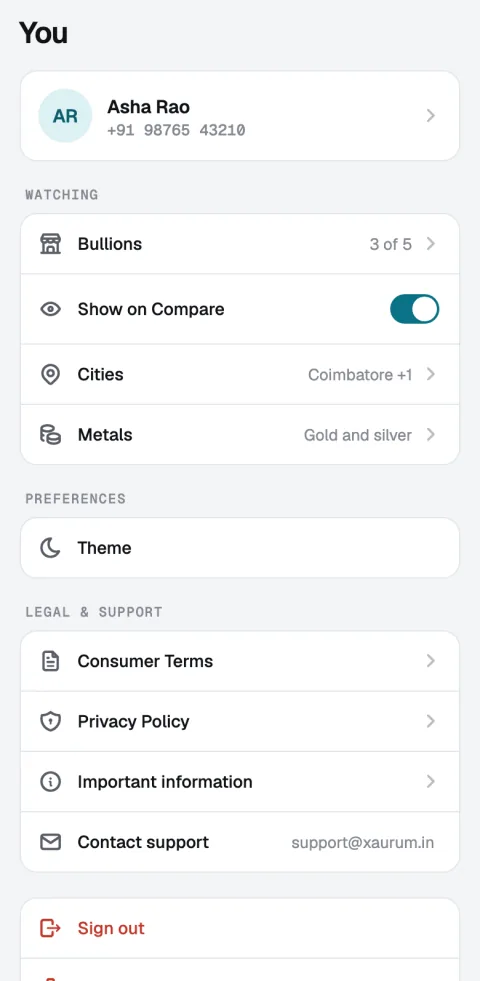
The orob You screen: a Profile card, then a Watching group with Bullions (3 of 5), Show on Compare, Cities and Metals rows, so Bullions can be opened any time to change or add dealers. The dealer names and prices are made up.

STEP 10 OF 11

Change your bullions any time

You are not locked in. To change or add dealers later, tap the You tab at the bottom right of the app, then tap Bullions: you land on the same Your bullions screen as in set-up, where you can add dealers (up to your limit) or remove them.

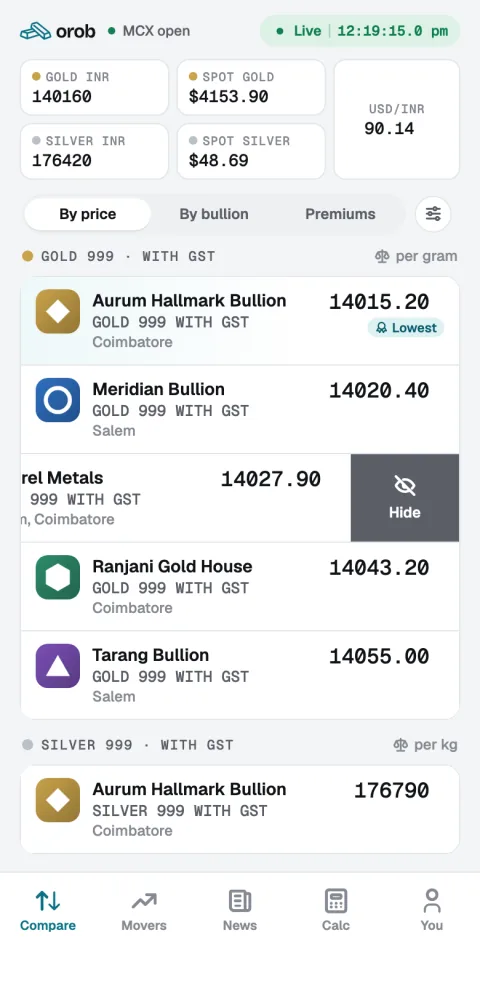
The orob Compare screen with one dealer's row swiped to the left to show a Hide button, so a dealer in a city you do not buy in can be hidden. The dealer names and prices are made up.

STEP 11 OF 11

Keep your city, hide the rest

If a dealer quotes a city you do not buy in, swipe its row to the left and tap Hide. Hidden is not removed: tap Show to bring it back.

Questions about setting up? Read the frequently asked questions, or read them in Hindi (हिन्दी).

orob is an independent price-discovery and dealer-directory service operated by Xaurum Fintech Private Limited. It gives general price information only, not investment or financial advice, and it does not sell gold or silver. Confirm the final price with the dealer. Read the Consumer Terms, the Privacy Policy and the Important information, or write to support@xaurum.in.